How to add a custom connector to ChatGPT, and fix it when it fails
ChatGPT reaches your other apps through MCP servers. How to add a custom one from the Plugins page, sign in, use it in a chat and choose when ChatGPT asks first, with screenshots from November 2026 and the failures we ran into.
TL;DR
- ChatGPT now calls a custom connector a plugin. On the web, open Plugins, press Add, choose Add custom MCP server and paste the server's URL.
- Deleting the plugin in ChatGPT did not end the connection on our side when we tried it, so revoke it at the service as well.
- ChatGPT connects from OpenAI's servers, so a server on your own machine or a private network needs a public HTTPS address or OpenAI's tunnel.
- ChatGPT keeps the tool list it read when you added the server. After the service changes its tools, or after you reconnect, press Refresh tools in the plugin's settings.
- The default permission lets ChatGPT run tools it judges low risk without asking. Choose Allow read-only tools if you want a prompt before every change.
On this page · 11 sections

A custom connector gives ChatGPT a way into another app, to read from it and to act in it. ChatGPT’s own pages use more than one name for it, and today you add one as a custom MCP server on the Plugins page.
We added Postmoderno’s server this way on 24 November 2026, on the web, and the labels and screenshots below are from that run. OpenAI moves these menus often, so if your screen differs, OpenAI’s guide has the current steps. The second half of the page is what to check when it does not work.
What ChatGPT calls a connector now
Connectors run on the Model Context Protocol (MCP), an open standard for linking AI apps to other systems. A service publishes an MCP server, and ChatGPT calls the tools that server offers.
You will meet three names for it, and one menu item:
| Name | Where you meet it |
|---|---|
| Connector | Older articles and forum posts |
| App | The part of a plugin that talks to the server. The plugin’s page lists it under Apps |
| Plugin | The Plugins page. It is what you install and pick in a chat |
| Custom MCP server | The menu item that adds one by its URL |
The Plugins page has a public list you can add from in one press. Anything that is not on it you add yourself by its URL, and OpenAI says it has neither built nor checked those servers.
What you need
- The server’s URL, from the service’s own documentation. It often ends in
/mcp. - ChatGPT on the web. OpenAI’s help page says you cannot add a custom server from the mobile apps.
- In a company workspace, an admin who allows it or adds it for you.
Add the server
- Open Plugins in ChatGPT’s left bar, or go to
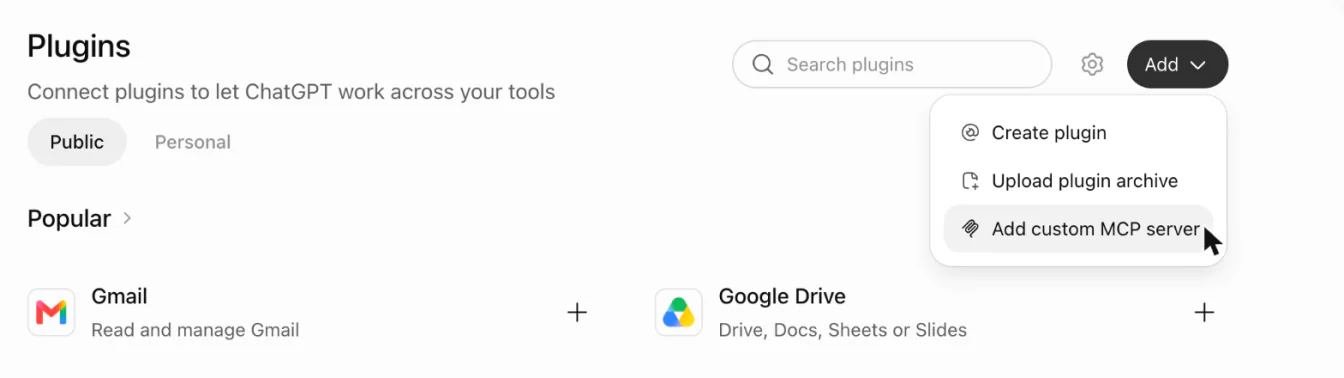
chatgpt.com/plugins. - Press Add at the top right and choose Add custom MCP server.
- Type a Name. It is what you will pick after
@in a chat. The icon and description are optional. - Under Connection, stay on Server URL and paste the address.
- Leave Authentication on OAuth when the service has you sign in. Choose No authentication only if its documentation says so.
- Read the risk warning, tick I understand and want to continue, and press Create as a plugin.
OpenAI’s guide calls the button in step 2 the plus button. On our screen it reads Add.
For Postmoderno the form takes these values, and any name will do:
Name            Postmoderno
Server URL      https://mcp.postmoderno.io/mcp
Authentication  OAuth
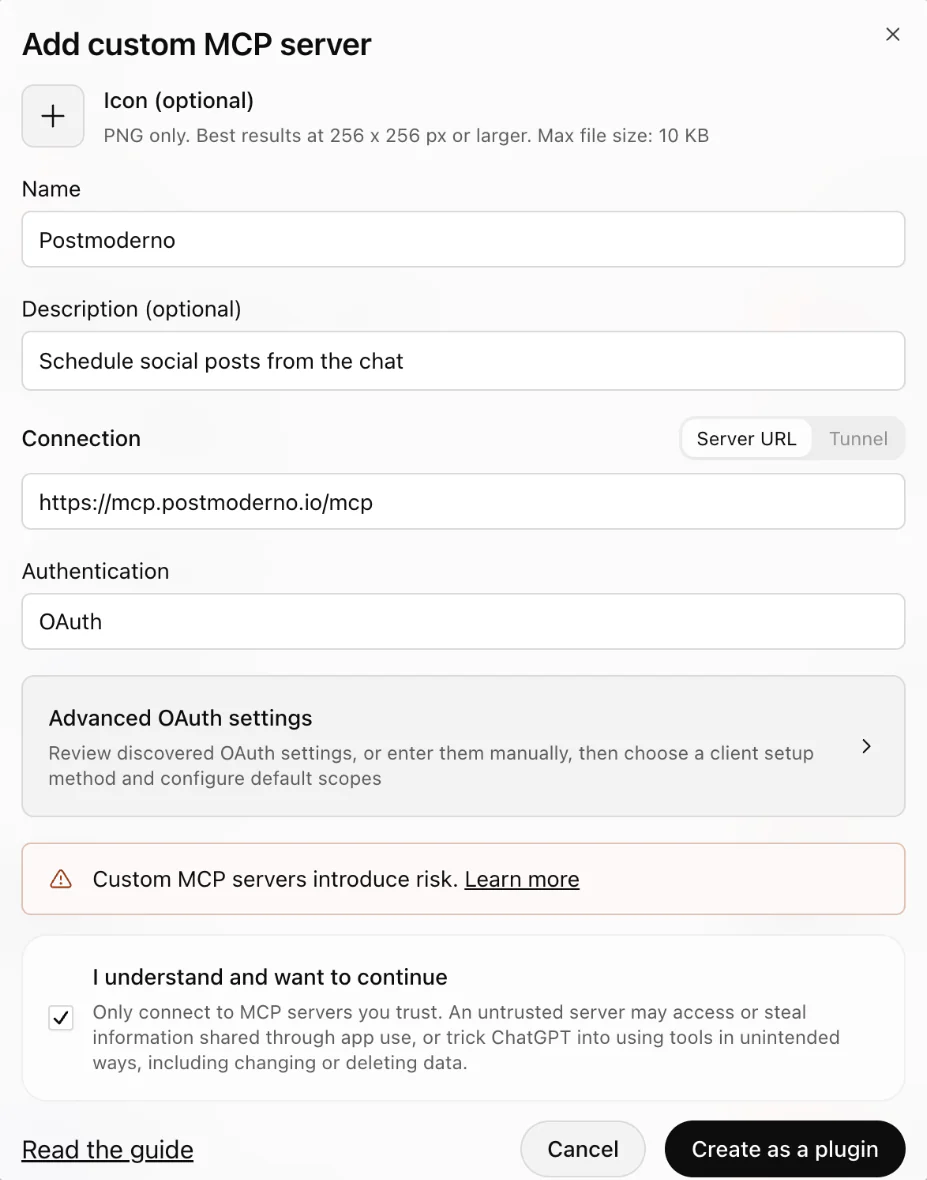
You can usually leave two parts of the form alone. Tunnel is for a server on your own machine or a private network, which the last section covers. Advanced OAuth settings shows the sign-in details ChatGPT found on the server, and only needs a change if the service tells you to make one.
Sign in and allow it
ChatGPT creates the plugin, puts it under Installed, and opens a card that says what it may share with the app: your chats with it and, if you have them switched on, memories.
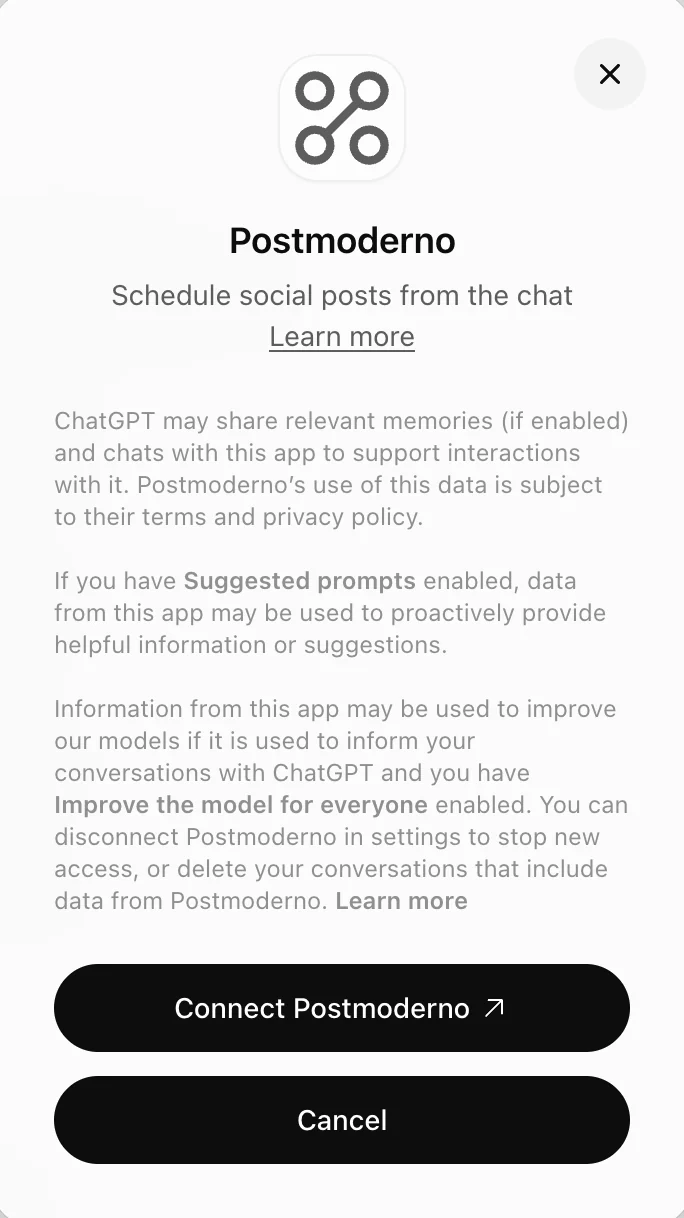
Press Connect and the browser goes to the service’s own page. Sign in there and read what you are granting, because that list is what ChatGPT will be able to do in the service. Every service draws this page its own way. Postmoderno shows each permission as a switch and keeps deleting posts off until you turn it on.
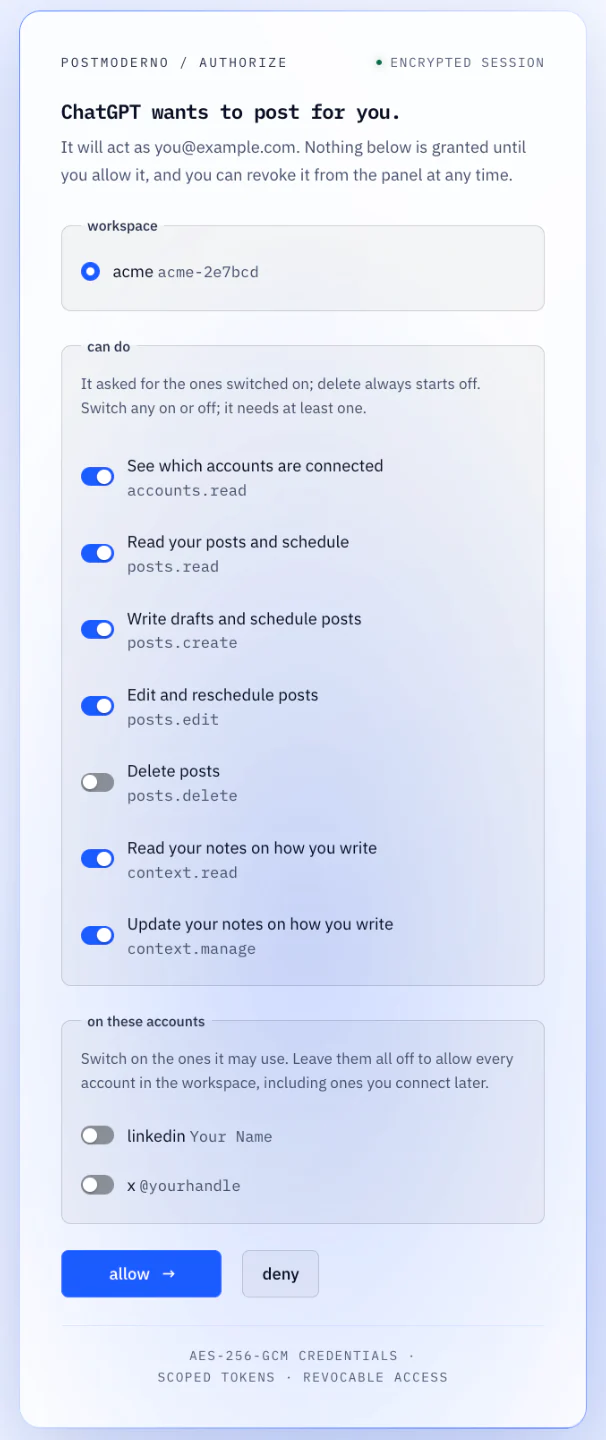
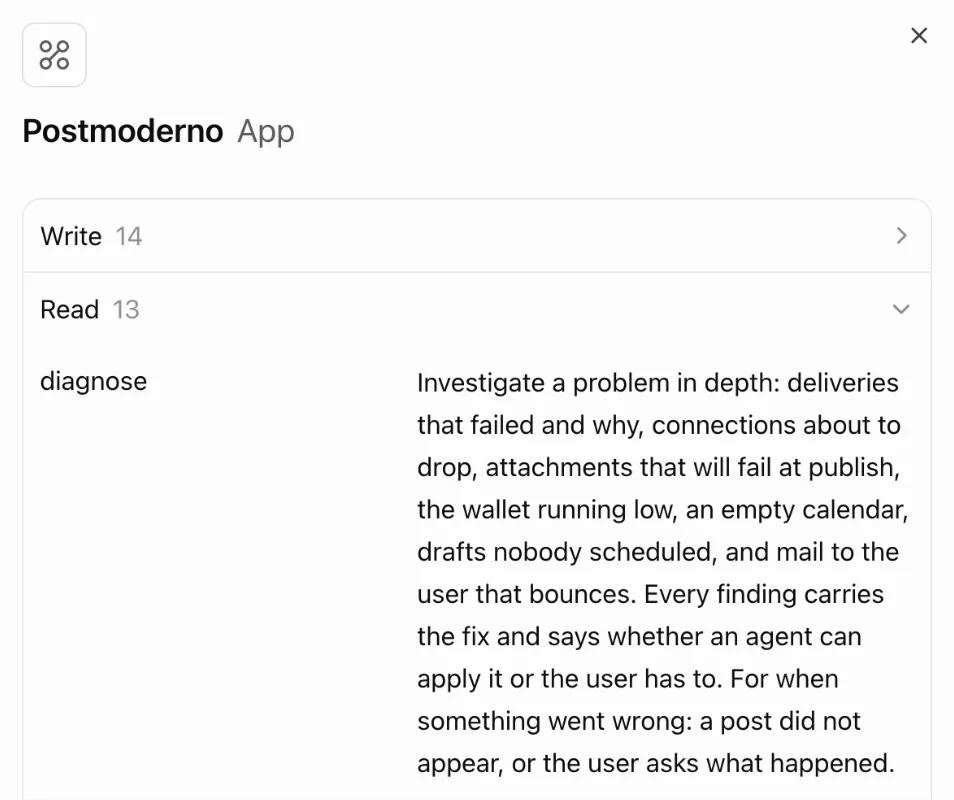
After you allow it, ChatGPT returns to the Plugins page and confirms the account is connected. Open the plugin from Installed and press its entry under Apps to see the tools ChatGPT read from the server, sorted into Write and Read.
Use it in a chat
In a chat, type @ and the name you gave the plugin, then your request. Try in chat on the plugin’s page starts a chat with it already picked.
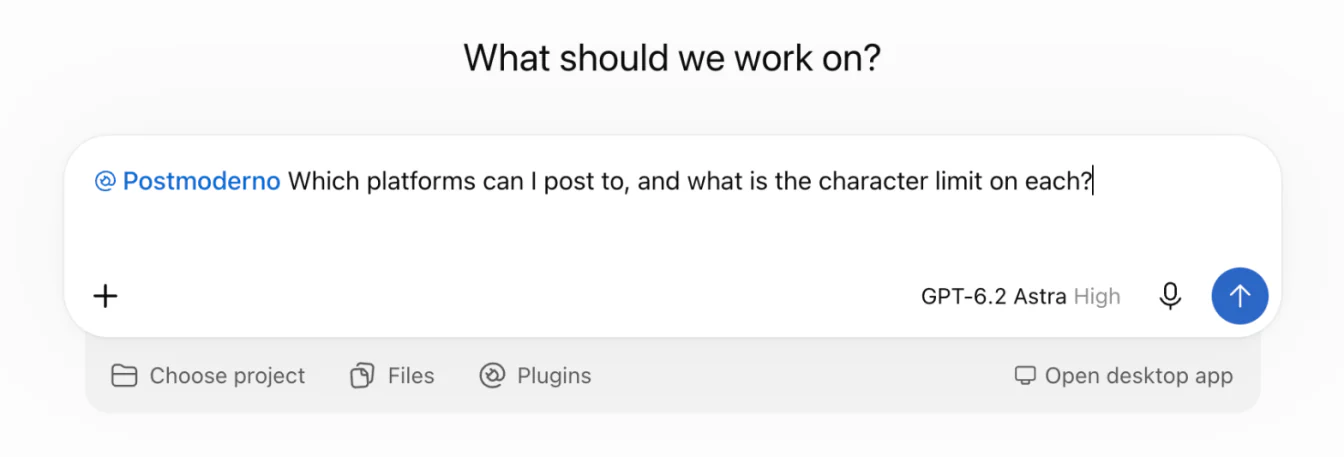
@.OpenAI’s help says the pick counts for that one message, not for the whole conversation. Name the plugin again when a later message needs fresh data from it.
Choose when ChatGPT asks first
Open Settings, then Plugins, then the plugin, then Permission. There are four choices:
| Choice | What ChatGPT does |
|---|---|
| Always ask | Asks before every tool, reading included |
| Allow read-only tools | Reads without asking, and asks before a change |
| Allow low-risk tools | The default. Runs what it judges low risk without asking, and may refuse a sensitive tool |
| Allow all tools | Never asks. ChatGPT labels it elevated risk |
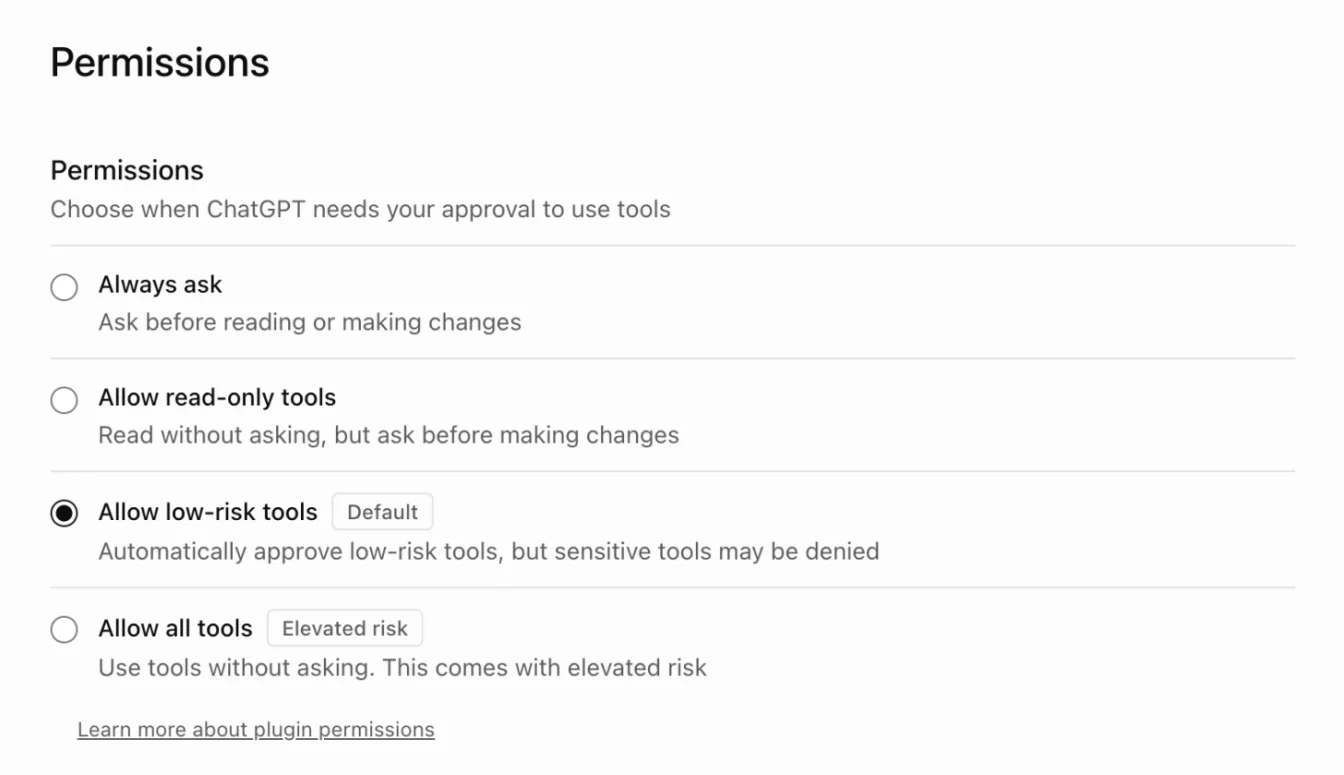
The default does not stop every write. In our October run it asked before canceling a post, but not before scheduling one. If you want a prompt before every change, choose Allow read-only tools.
With Always ask, each tool gets its own card naming the tool, with Deny and Allow once.
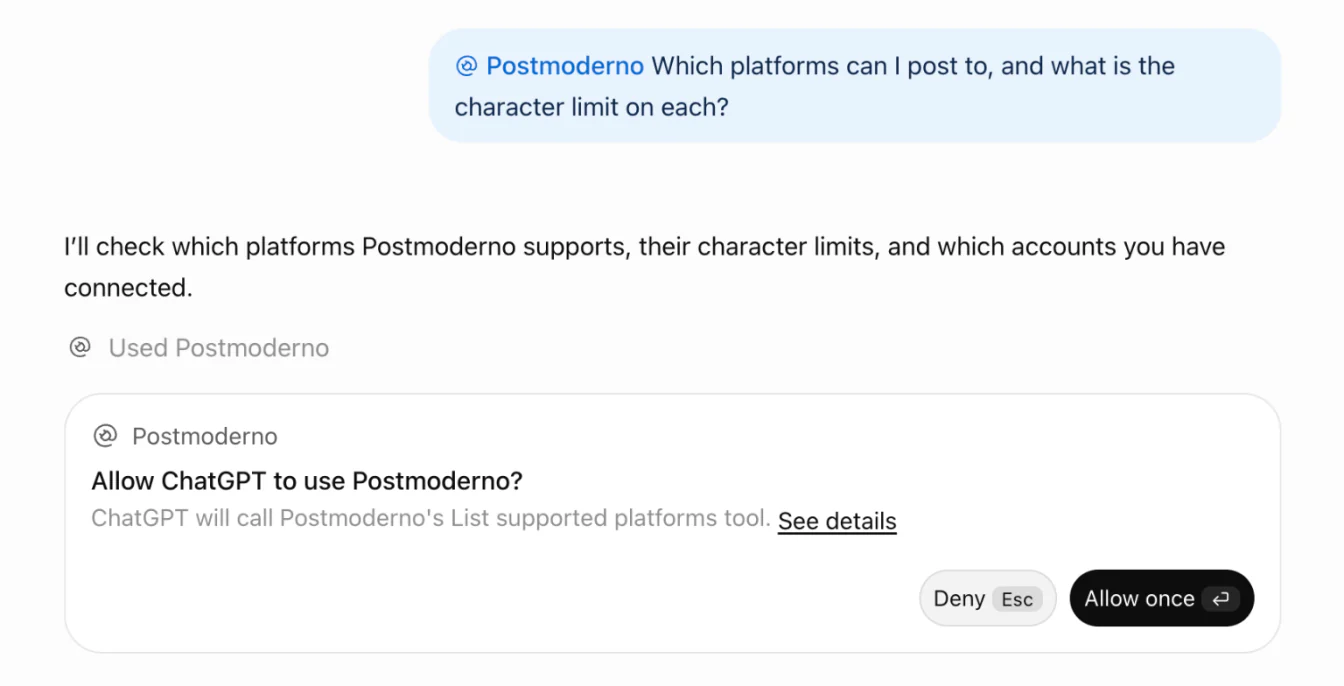
When we pressed Deny, ChatGPT searched the web for the answer instead, and said it could not check which accounts were connected.
Change, refresh or remove it
The plugin’s settings page ends with Manage app.
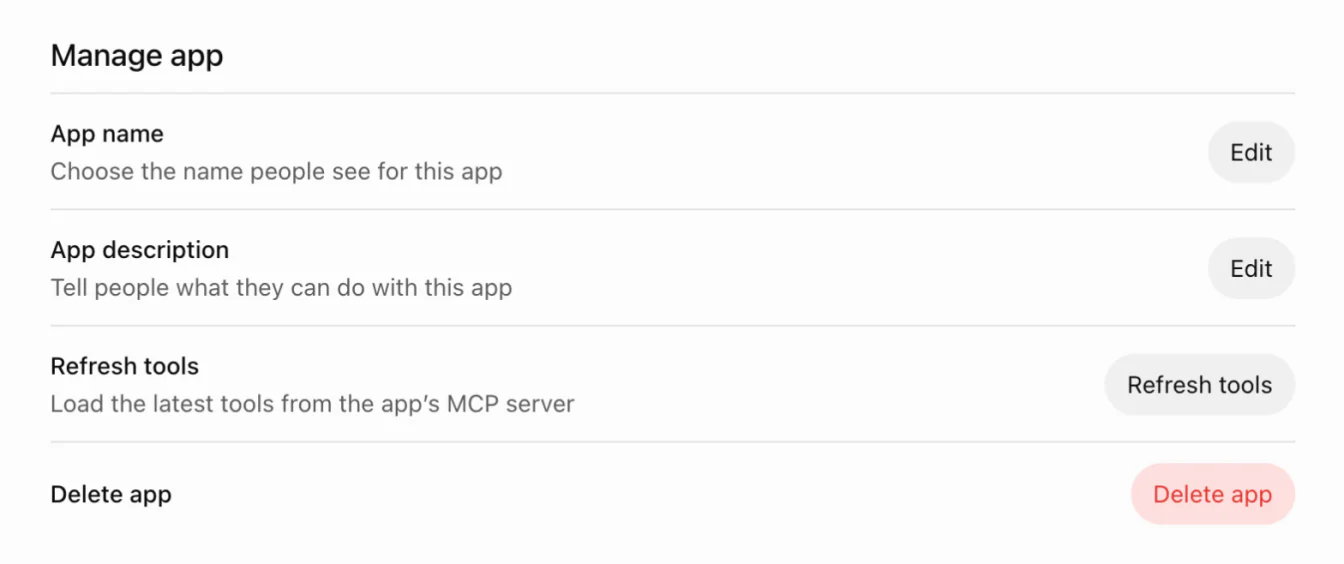
- You can edit App name and App description. We found no field for the URL, so to change it, delete the plugin and add it again.
- Refresh tools loads the server’s current tools. ChatGPT keeps the list it read when you added the server, so press this after the service adds or changes a tool.
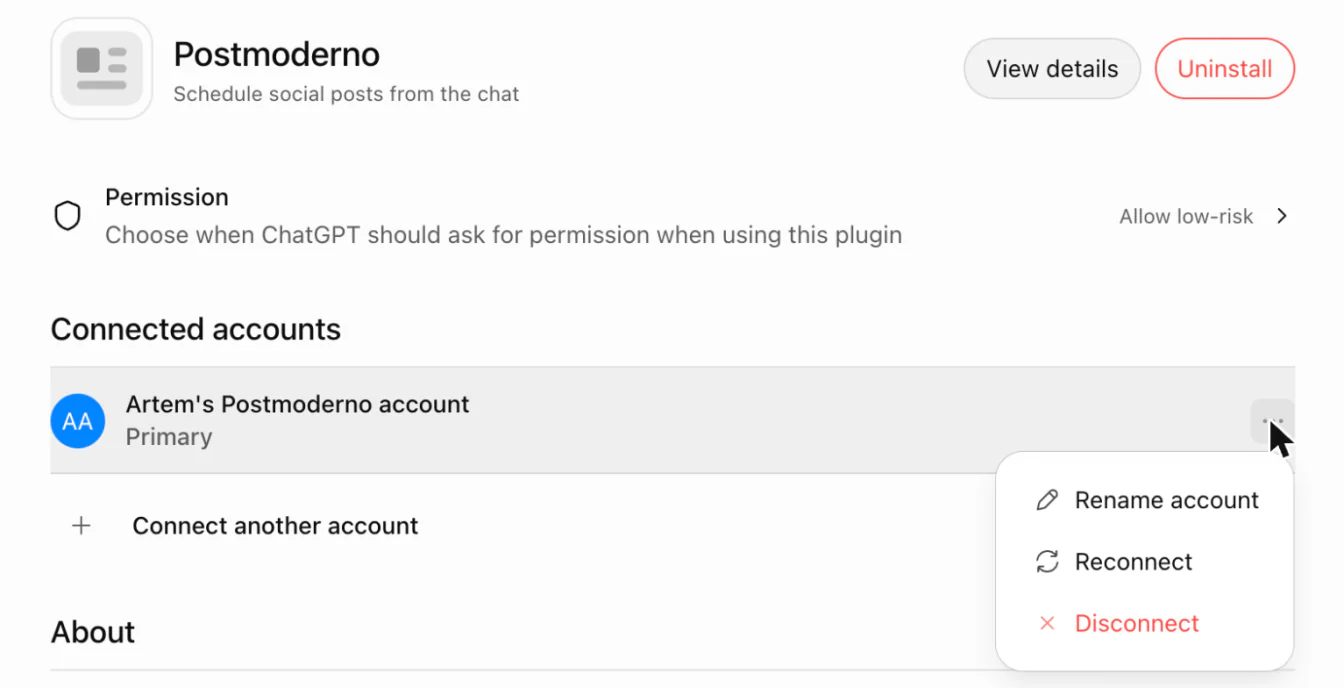
- Connected accounts lists the sign-in. Its
…menu has Rename account, Reconnect and Disconnect.
To remove the plugin, open its page from Plugins and press …. The menu has Uninstall and Delete plugin. We used Delete plugin: ChatGPT asks you to confirm and says the plugin and its connections are deleted for good.
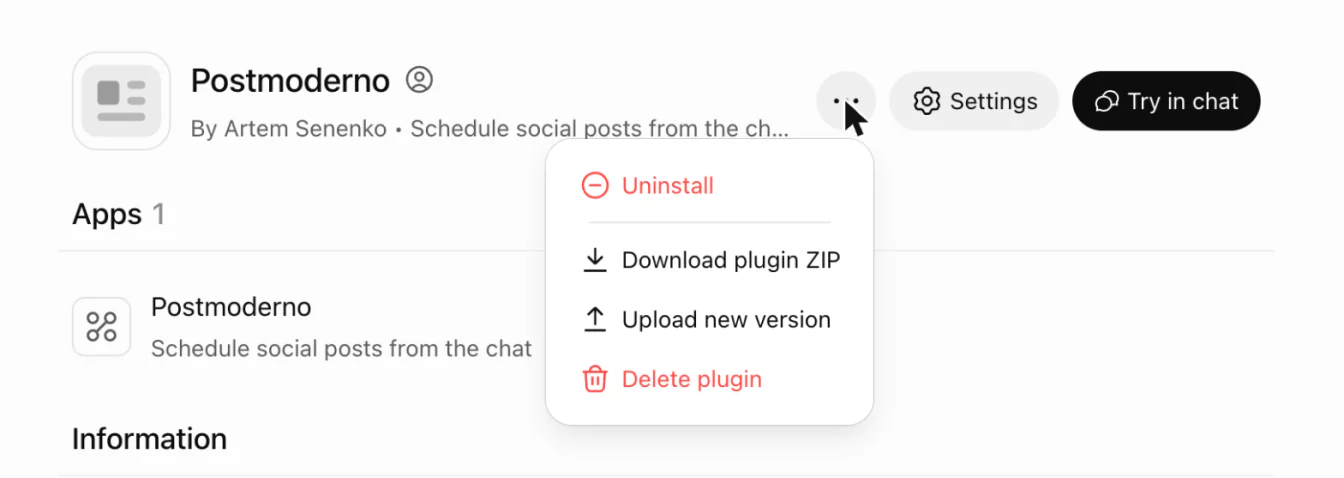
That is ChatGPT’s side, though. When we deleted a test plugin on 24 November 2026, its connection was still listed in Postmoderno afterwards and we had to revoke it there, so end the connection at the service as well.
When it fails
“Add custom MCP server” is not in the menu
Check that you are on the web, not in a mobile app. If you are, your ChatGPT account or workspace does not offer custom servers. OpenAI’s help page says who gets them, and in a workspace an admin decides.
Older guides send you to a Developer mode switch in Settings first. OpenAI’s help says you no longer need it.
ChatGPT says the server “does not implement OAuth”
We have not hit this one. The form starts on OAuth, so if the service has no sign-in, choose No authentication and try again.
If the service does have a sign-in, the cause may be on its side. On OpenAI’s forum, one person put the message down to a firewall that let only some of ChatGPT’s requests through, and another found a firewall blocking the request ChatGPT sends to check the server. Only the service can fix that.
The sign-in works, but no tools load
This one happened with our own server in October 2026. ChatGPT finished signing in and then could not read the tools, because the server did not answer in the version of MCP that ChatGPT asked for. If you see it with someone else’s service, you cannot fix it from ChatGPT, so tell them what ChatGPT showed and when.
ChatGPT calls a tool that is gone, or misses a new one
It is working from an old list. Press Refresh tools, then start a new chat. Do the same after you reconnect with different permissions: after one reconnect with fewer, ChatGPT went on calling tools the new sign-in no longer allowed, and the server refused each one.
ChatGPT answers without using the plugin
Pick the plugin with @ in that message, and ask for the current state. We asked “show me that draft again” after the draft had been deleted, and ChatGPT showed it from its own earlier message as if it still existed. “Open that draft in Postmoderno again” made it look.
A call waits for approval, or is refused
ChatGPT reads what a tool is about to send. It held a post of ours for approval because the text contained the words “please ignore”, which looked like an instruction aimed at the AI. Approve the call if the text is yours. OpenAI’s permissions page says ChatGPT blocks some risky actions without asking.
The connection stops working after a while
Press Reconnect in the connected account’s menu and sign in again. OpenAI’s help says ChatGPT can lose access when the service does not let it renew.
The server is on your own machine
ChatGPT connects from OpenAI’s servers, not from your computer, so localhost and addresses inside a private network are out of its reach even when you can open them. Give the server a public HTTPS address, or use the Tunnel option with OpenAI’s Secure MCP Tunnel.
If you run the server
OpenAI’s authentication guide and troubleshooting page cover the rules. Advanced OAuth settings in the form is a quick check of what ChatGPT discovered on your server before anyone signs in: the registration method, the scopes and each endpoint.
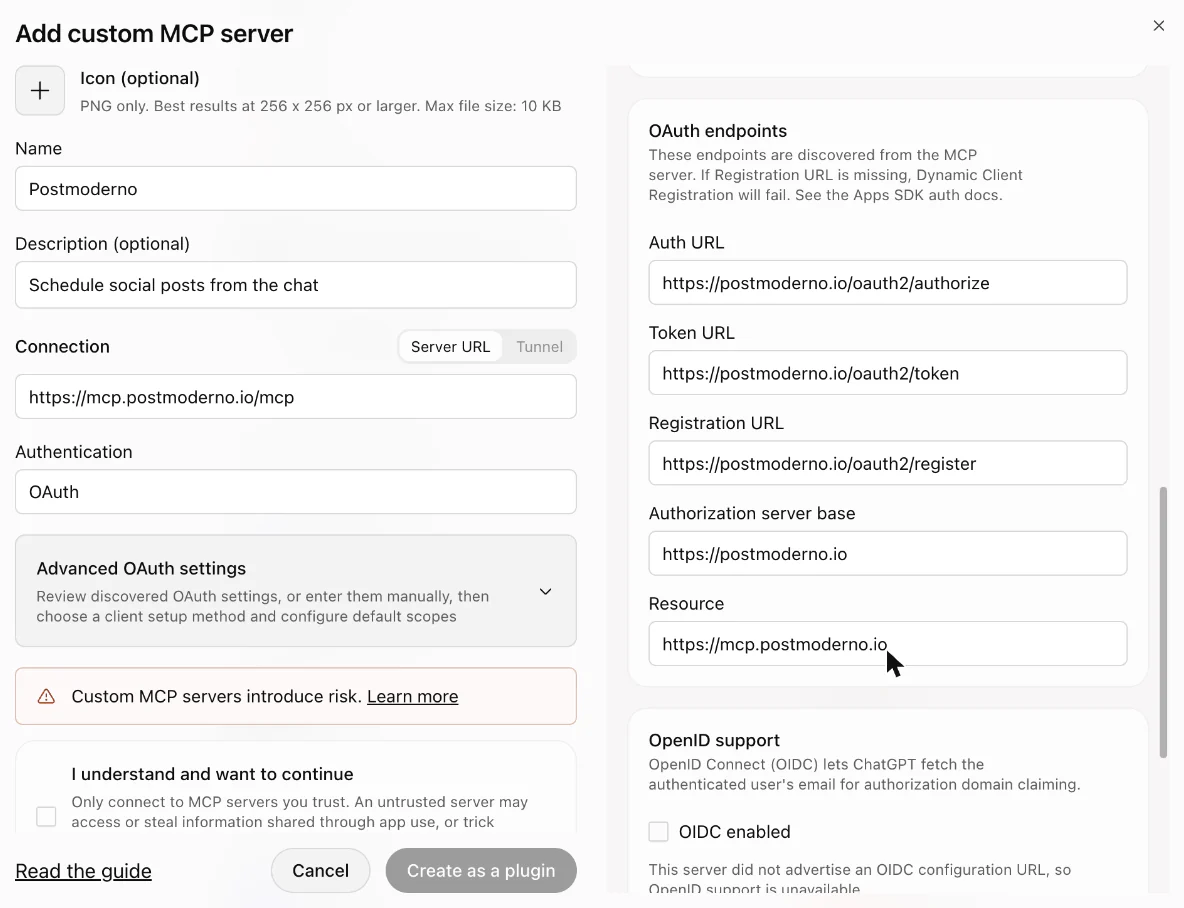
These are the things that cost us time when we connected Postmoderno:
- In October 2026 ChatGPT opened with
server/discoverand wanted MCP version2026-07-28. Our server left that version out of its answer, and ChatGPT stopped there. Sign-in had already succeeded, so it looked like a sign-in bug and was not one. - ChatGPT registered itself without naming a scope, then asked for exactly the scopes our answer named. Our narrow default capped what the person could ever grant, so we now answer with every scope and let the person choose on the consent page.
- ChatGPT builds the scopes it asks for from the tools it can see. After someone narrowed a grant, the reconnect asked only for the narrow set. We now offer the full set on every reconnect, with the requested ones switched on.
- A rule in the last sentence of our server instructions was never followed. OpenAI’s guide says to keep the first 512 characters self-contained, so our rules now also sit in the tool descriptions and tool results.
- Mark your read-only tools. OpenAI’s guide says ChatGPT treats a tool without
readOnlyHintas a write. - If a firewall sits in front of the server, let OpenAI’s addresses through. OpenAI publishes the addresses ChatGPT connects from.
- Give people a place to revoke. The grant of a plugin we deleted in ChatGPT stayed on our side until we revoked it.
Two more bugs that never showed from the command line, a trailing slash and Origin: null, are in the Claude guide.
Keep it safe
OpenAI does not check custom servers. A server you do not trust can read what ChatGPT sends it, and can steer ChatGPT into calling tools that change or delete your data. Add only servers you trust, grant the least that does the job, pick a permission level that asks before a change, and when you are done, remove the plugin and revoke the connection at the service.
Where to go next
To schedule social posts from ChatGPT, the setup guide connects Postmoderno and schedules a first post, and What an MCP post scheduler is explains how that works. If you use Claude as well, How to add a custom connector to Claude is this guide’s twin.
If you write the post yourself first, the free LinkedIn text formatter and X character counter run in your browser.